For real estate developers
Propcore puts your live unit inventory inside every Pipedrive deal.
Your sales reps pick units with today’s price and status without leaving the deal.
What it is
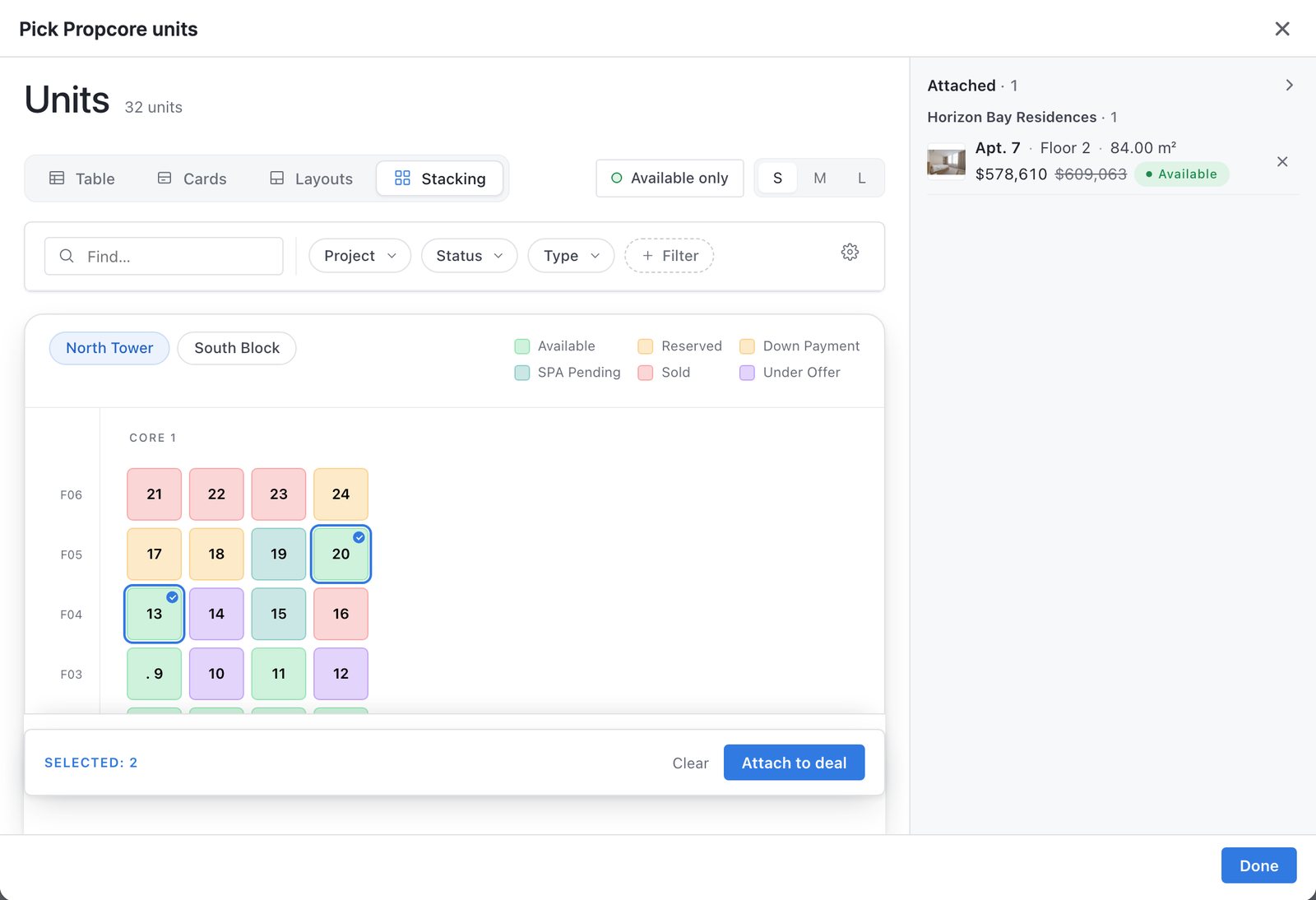
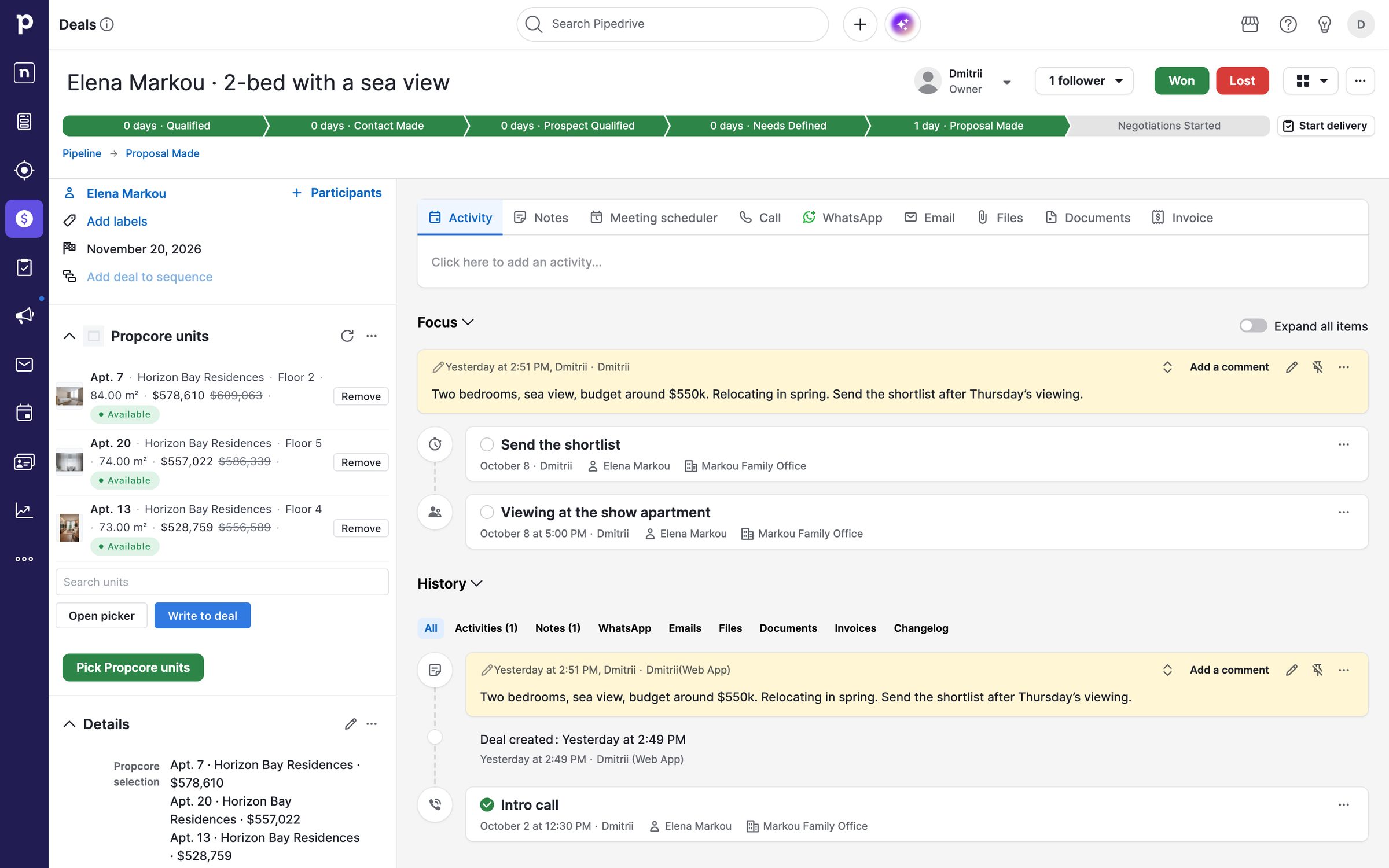
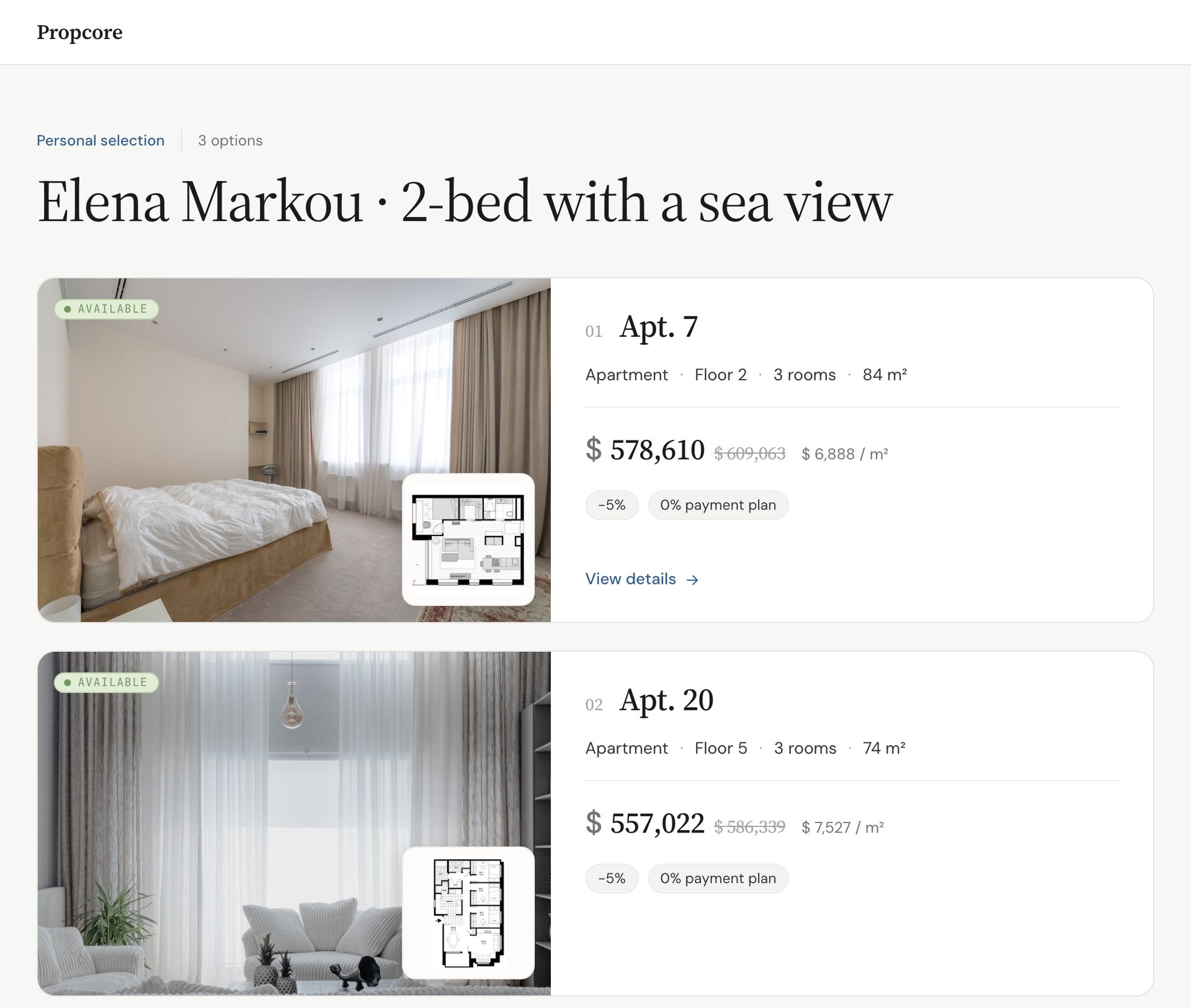
Propcore holds a property developer’s unit inventory, and its app brings that inventory into Pipedrive deals. In every deal the app adds a panel with the units attached to it, a picker for the live inventory as a table, cards or the building’s stacking plan, three deal fields with the shortlist, and a page for the buyer.
Pick units in the deal.
The units stay on the deal, next to the notes and the next viewing.
The buyer opens a page with the units, their plans and today’s prices.
Products hold a price list. They have no availability per unit, no holds, no stacking plan and no page for the buyer.
Every card shows the unit’s live status. A reservation made in Propcore shows on every deal the next time it is opened.
No. Pipedrive stays your CRM, and Propcore holds the inventory.
Setup
Connect once.
The app asks Pipedrive for full access to Deals and Deal fields: it creates three deal fields and writes them on the deal a rep works in. From Pipedrive it keeps the deal’s id, title and link, and who authorized: the user id, the company id and the company name. Each rep authorizes once, and the panel then works under that rep’s own Pipedrive access. The picker shows what the Propcore user who connected may see, and other buyers’ contacts never reach Pipedrive.
Disconnect in your Propcore workspace ends the connection for every rep. A rep who removes the app in Pipedrive removes it for themselves, and the connection ends when the last rep removes it. The deal fields keep their last values.
Questions: hello@propcore.ai
- 01In your Propcore workspace, open Integrations → Pipedrive and press Connect.
- 02Allow and Install in Pipedrive. The three deal fields are created for you.
- 03Choose what the picker offers and which fields the panel shows.
- 04Open a deal. The Units panel is there, with Pick units under it.
More use cases